Let the display setup settle before restoring
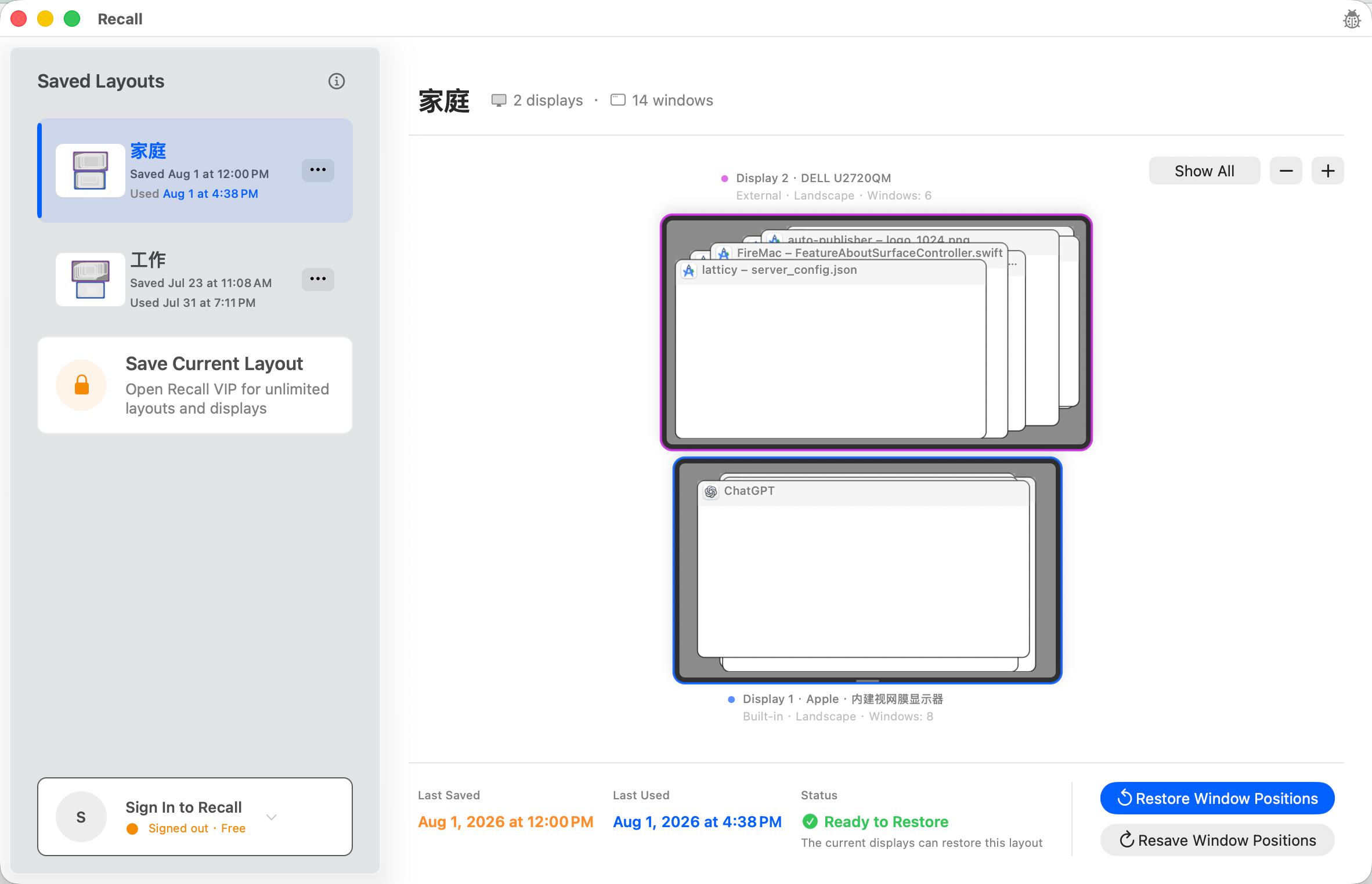
Reconnect the monitor and verify that macOS sees every expected display with the intended arrangement. A monitor that is still waking, switching inputs, or negotiating a connection can leave the desktop in a temporary state. Wait until the setup is stable before judging a workspace match.
Choose the workspace made for this monitor combination
Select the saved layout whose name and display setup match the desk you have just reconnected. Recall Free supports full manual use of one workspace. An active subscription adds unlimited workspaces and a recognition prompt when a reliable reconnect match is available.
Read the preflight instead of assuming a full match
Check both display recognition and the current windows Recall can identify. A closed app, a removed window, or a changed monitor arrangement can make the current state different from the saved baseline. The preview is the place to notice those differences before anything moves.
Confirm a restore of recognized existing windows
Recall waits for explicit confirmation. It then works with windows that already exist and have a reliable match. It does not launch a missing application to recreate a saved window, and it does not force uncertain matches merely to make the result look complete.
Troubleshoot permission and window state first
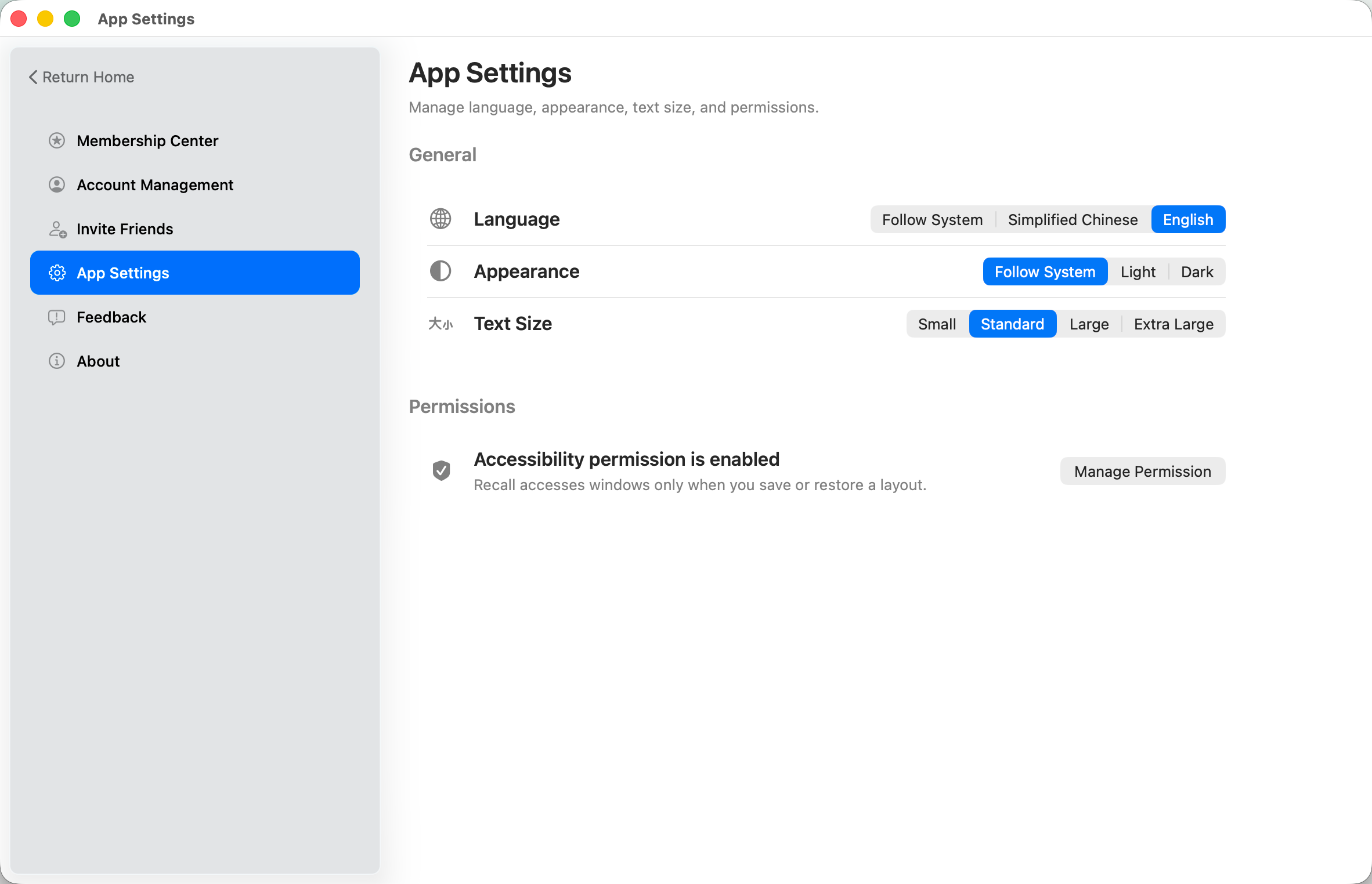
If some windows remain out of place, verify Accessibility permission and confirm that the relevant app and window are open. When a display change is permanent, save a new stable baseline after the desk is settled instead of overwriting a good workspace during a transient connection problem.