Save and Restore Mac Window Layouts After Monitor Changes
Recall is a Mac window layout manager that saves multi-monitor workspaces locally, previews the match after reconnecting, and moves windows only after you confirm.
Free: 1 workspacemacOS 13.0+Signed · Apple notarized
- Workspace, window, and display content stays on your Mac
Download details
View SHA-256 checksum
fc31d9aefae339a78d4a039700c0cb118b36ea8254feb59be258bd3daba7e514
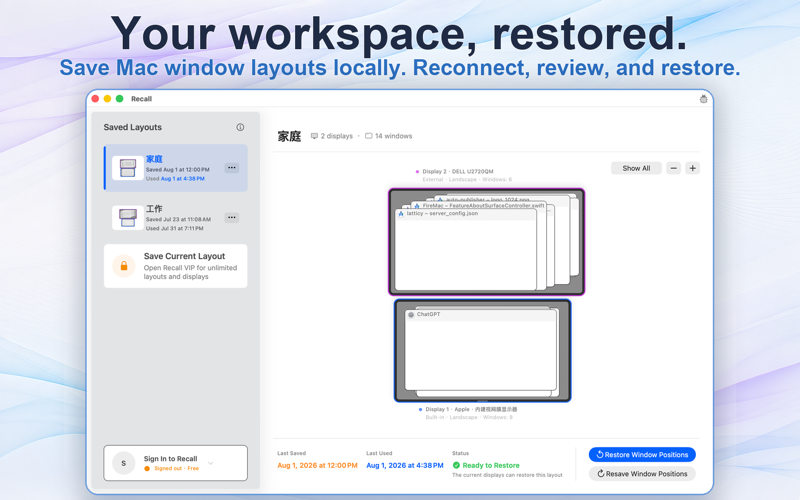
Designed around a real desk setup
Save workspaces
Save display arrangements, window positions, and sizes locally on your Mac.
Confirm before restoring
Preflight displays and windows, then restore only after your explicit confirmation.
Recognize reconnects
With an active subscription, Recall recognizes reliable workspace matches after displays reconnect and offers a restore prompt.
Real Screens: Workspaces and Accessibility
These screens show Recall's main workspace view and the macOS Accessibility setting required before Recall can inspect or move windows.
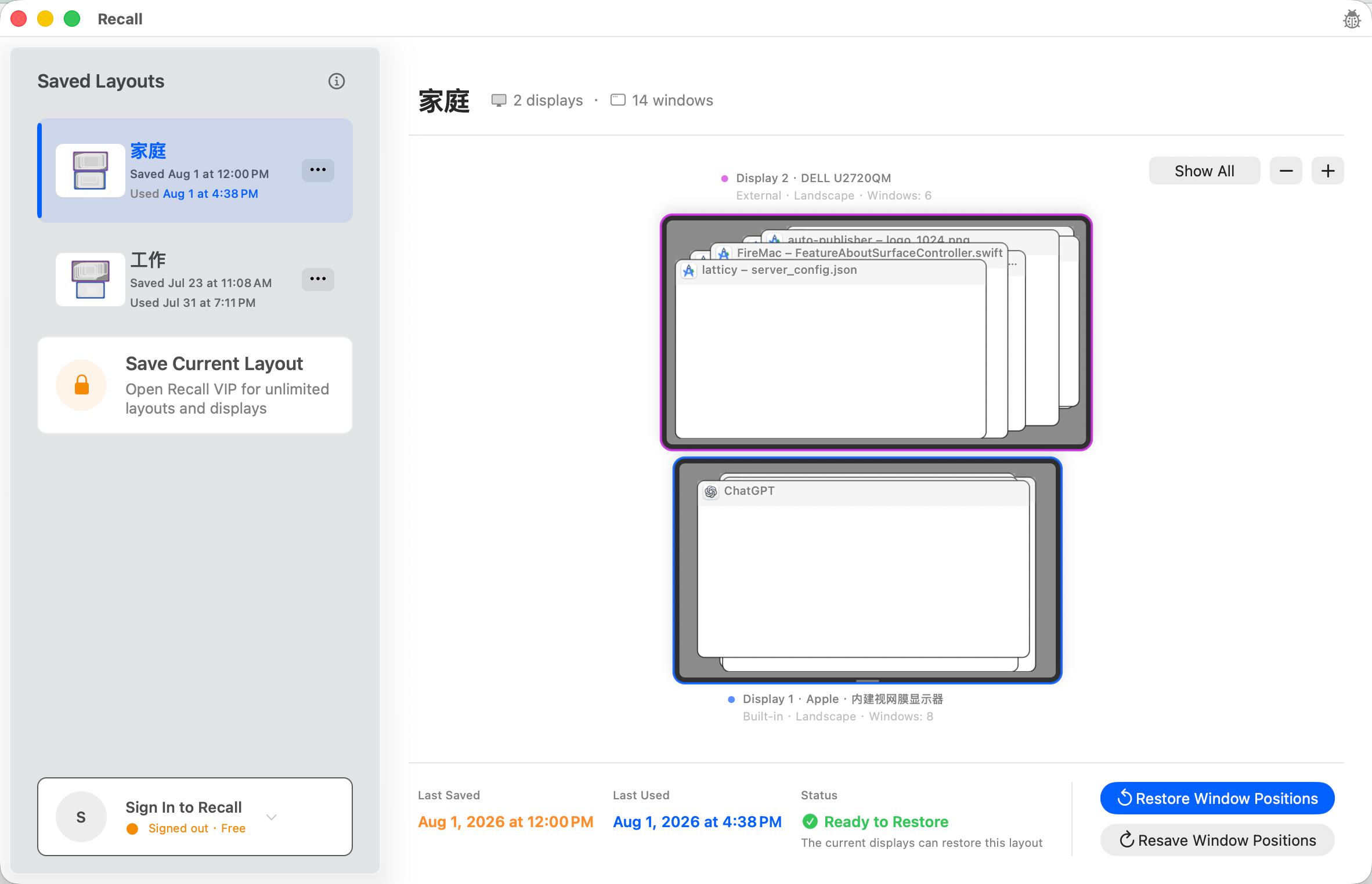
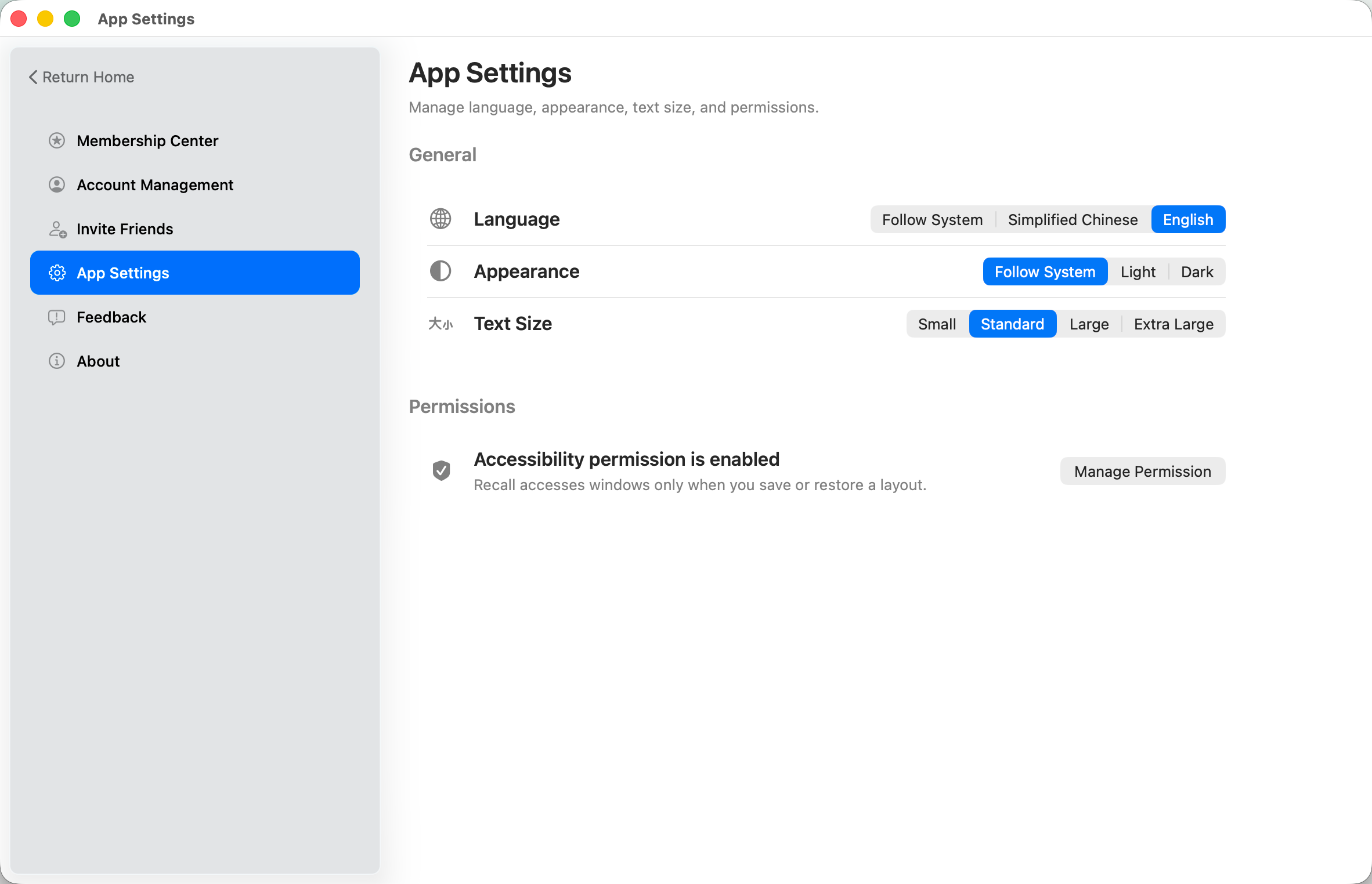
From a saved desk setup to a deliberate restore
Recall saves only layouts you confirm, keeps workspace content local, and never moves windows without your action.
Arrange and save
Arrange windows across your displays and save the setup as a workspace.
Disconnect and return
Your workspace file remains safely stored on your Mac.
Review and restore
After reconnecting displays, confirm the workspace before restoring recognized windows.
Clear product boundaries
Accessibility permission required
Recall needs macOS Accessibility permission before it can inspect or move windows.
Does not open missing apps
The initial release restores only windows that already exist and can be identified reliably.
Layout content stays local
Workspace, window, and display content is not included in account, subscription, or product analytics data.
Save, recover, and reuse Mac window layouts
Recall is for Mac users who regularly reconnect external displays and want to review a match before restoring a familiar window arrangement.
How to save a window layout on Mac
Save the current display arrangement and the positions and sizes of windows that already exist as a reusable local workspace.
Restore positions after reconnecting a monitor
Review the display and window match after reconnecting, then explicitly confirm before recognized windows move.
Why windows move after a monitor disconnects
Understand how a changed display topology can trigger macOS window rearrangement, then save a reusable baseline before disconnecting.
Build a repeatable multi-monitor workspace
Use stable monitor connections, clear workspace names, and a restore preflight to reduce daily window rearrangement.
Recall at a glance
When Recall is a good fit
Recall fits Mac users who regularly connect and disconnect external displays and want to reuse the same window positions.
It fits a deliberate workflow where display and window matches are reviewed before any windows move.
Recall needs macOS Accessibility permission to inspect and move windows; it cannot complete a restore without that access.
Recall does not promise to launch missing apps, recover windows it cannot identify reliably, or manage macOS Spaces.
Common Questions
Recall saves a display arrangement and the positions and sizes of windows that exist when you deliberately save a workspace. It does not save window contents or user input.
Recall first shows a reliable workspace, display, and window match. It moves recognized existing windows only after you explicitly confirm.
No. Recall preflights the match and waits for your confirmation before moving windows.
No. The initial release restores only windows that are already open and can be identified reliably.
macOS requires Accessibility access before an app can inspect window geometry and move windows after you approve a restore.
No workspace, window, or display content is uploaded. Optional first-party analytics records only limited operation outcomes and low-cardinality context described in the privacy policy.
Free can fully save, update, and manually restore one workspace. A subscription unlocks unlimited workspaces and display-reconnection recognition prompts. There is no trial.
Download Recall for Mac Free
Workspace layouts stay local. Network features support accounts, subscriptions, updates, feedback, and optional first-party product analytics as described in the privacy policy.