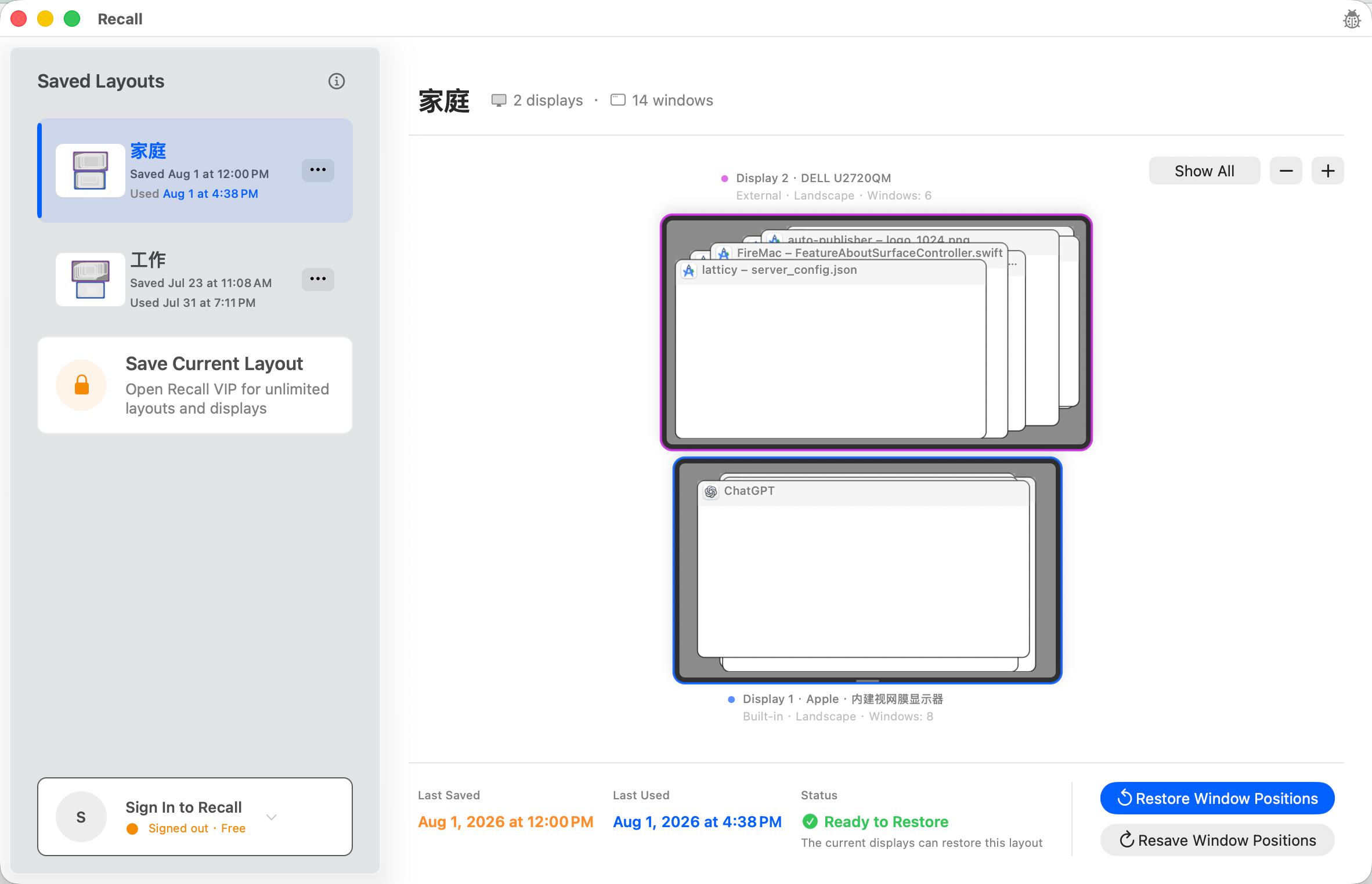
A disconnected display removes part of the visible desktop
Windows that occupied coordinates on the external screen can no longer remain visible in the same place once that screen disappears. macOS and individual apps may move them onto an available display. The exact result can vary with display arrangement, app state, and the windows that are open at that moment.
Reconnecting the cable does not rewind window geometry
By the time the monitor returns, windows may already have been resized or relocated for the smaller desktop. An app may also have been closed or reopened. Restoring the physical connection alone therefore does not guarantee that every window will return to its former screen and coordinates.
Save the useful arrangement before leaving the desk
When the setup looks right, deliberately save it as a Recall workspace. That local record captures the display arrangement and geometry of existing windows. It is a baseline for a later comparison, not a service that continuously locks windows in place or overrides how macOS reacts to a disconnect.
Review the current match after the display comes back
Wait until the monitor is recognized, then open the appropriate workspace and inspect the preflight. If the display setup is different or an important window is absent, fix the current state first. Confirm only when the recognized windows and target displays make sense.
Treat temporary and permanent setup changes differently
A short disconnect should not require replacing a good workspace. A new monitor, resolution, or long-term division of work may justify a new baseline after the setup is stable. Recall does not manage macOS Spaces and will not open missing apps to imitate an old desktop.