Start with the desk setup you actually want to repeat
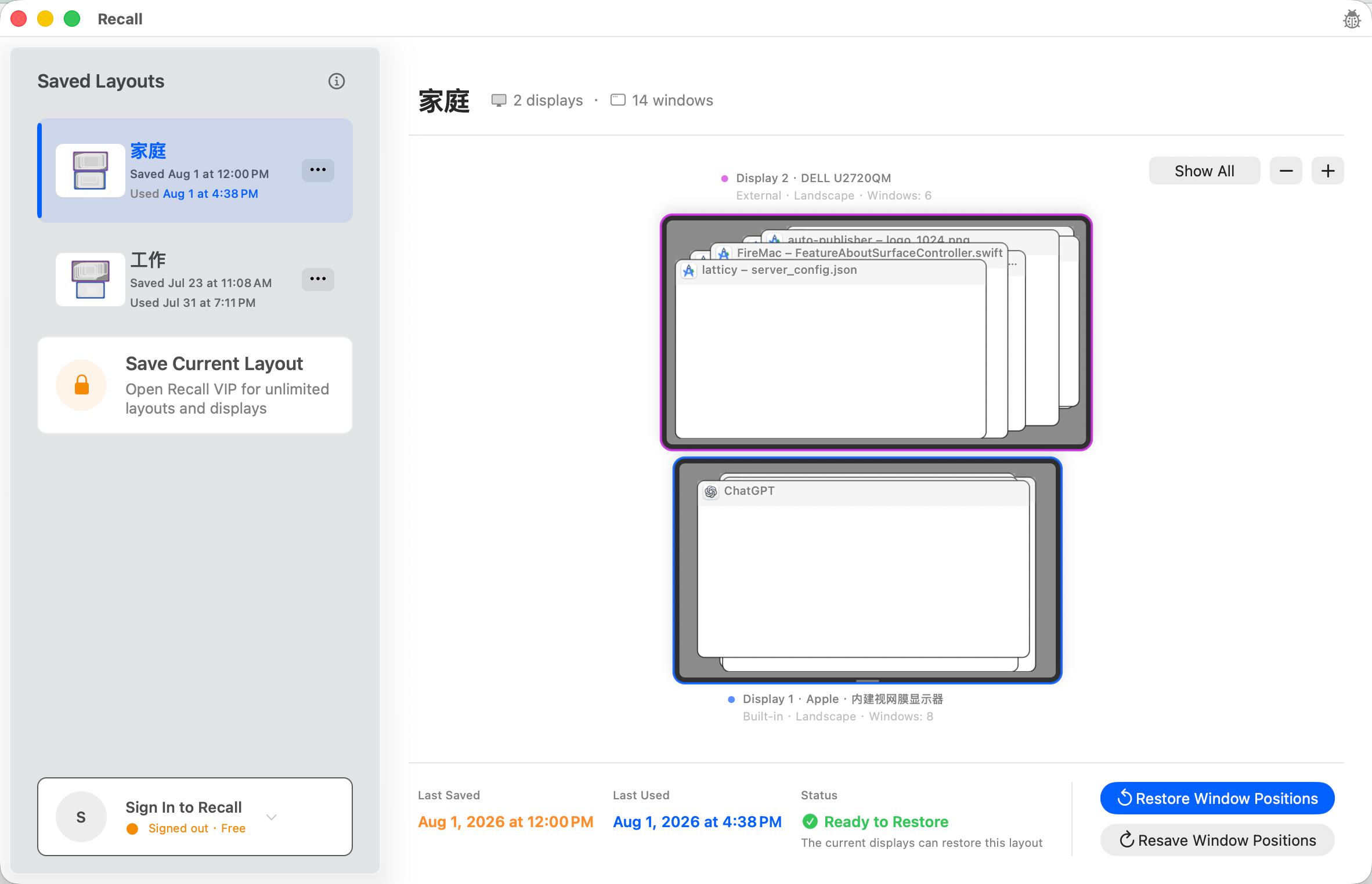
Connect the monitors you normally use and place each important app window on its intended screen. Resize the windows before saving. Temporary dialogs and one-off windows make a poor baseline, because Recall records the windows that exist at the moment you choose to save the workspace.
Create a clearly named workspace in Recall
Use a name that identifies the place or display combination, such as Office Dual Display. Recall writes the display arrangement and window geometry to a workspace file on the Mac. It does not store the text inside windows, user input, or document contents as part of that layout.
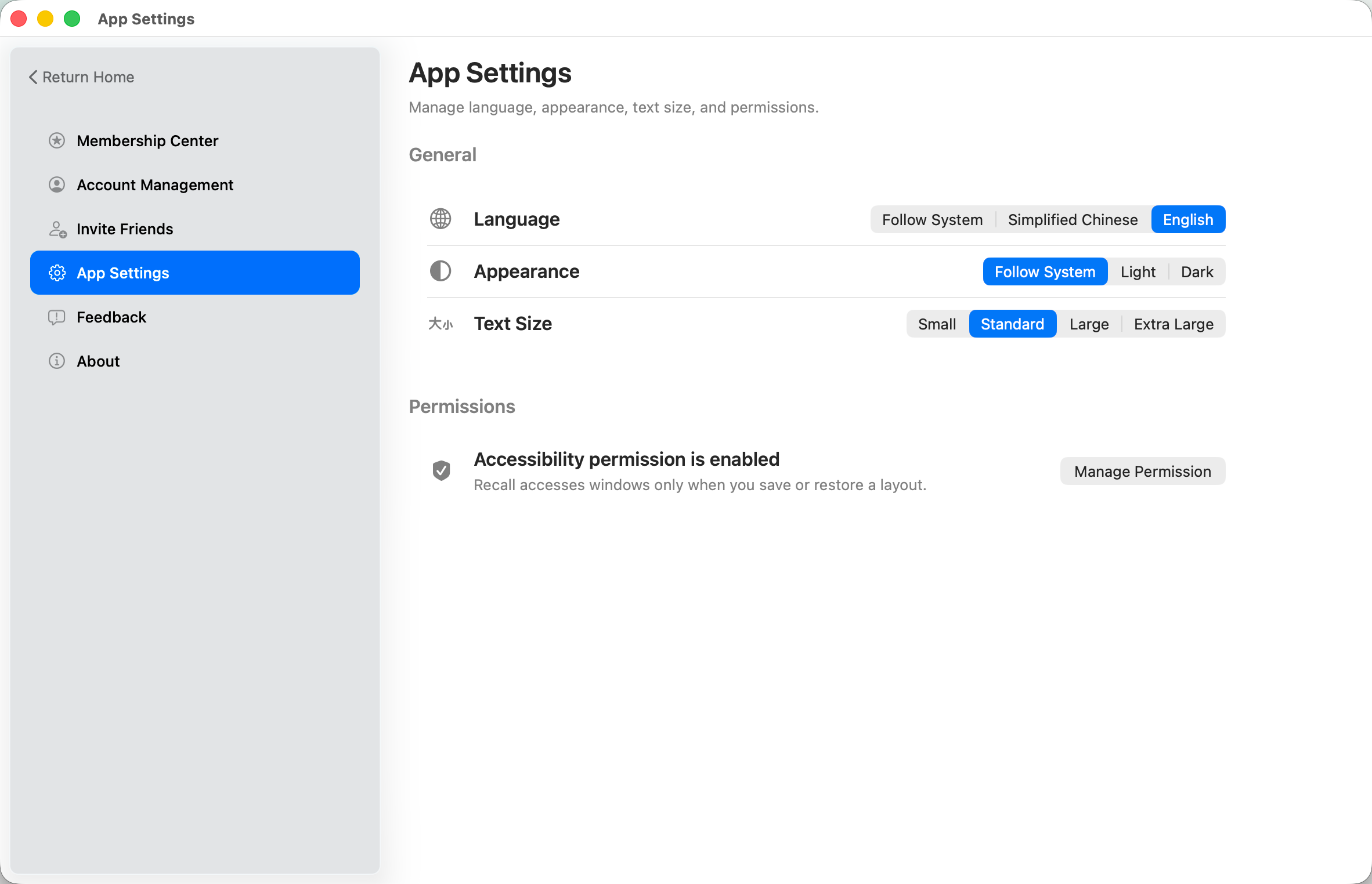
Verify Accessibility access before relying on restore
macOS requires Accessibility permission before Recall can inspect window geometry or move a window. If expected windows do not appear in a preflight, check Recall's Application Settings and the corresponding macOS privacy setting before replacing a workspace that was previously correct.
Use the restore preview as a practical test
Open the restore flow and review which displays and current windows Recall can match. A saved workspace is a reference, not a promise to manufacture missing state. Recall will not launch an app that is closed or force an uncertain window match simply because that window appeared in the saved layout.
Update the baseline only when your routine changes
A permanent monitor change or a new long-term window arrangement is a good reason to update or create a workspace. A temporary disconnect is not. Keeping a stable baseline makes the next preflight easier to understand and avoids replacing a useful layout with an accidental arrangement.