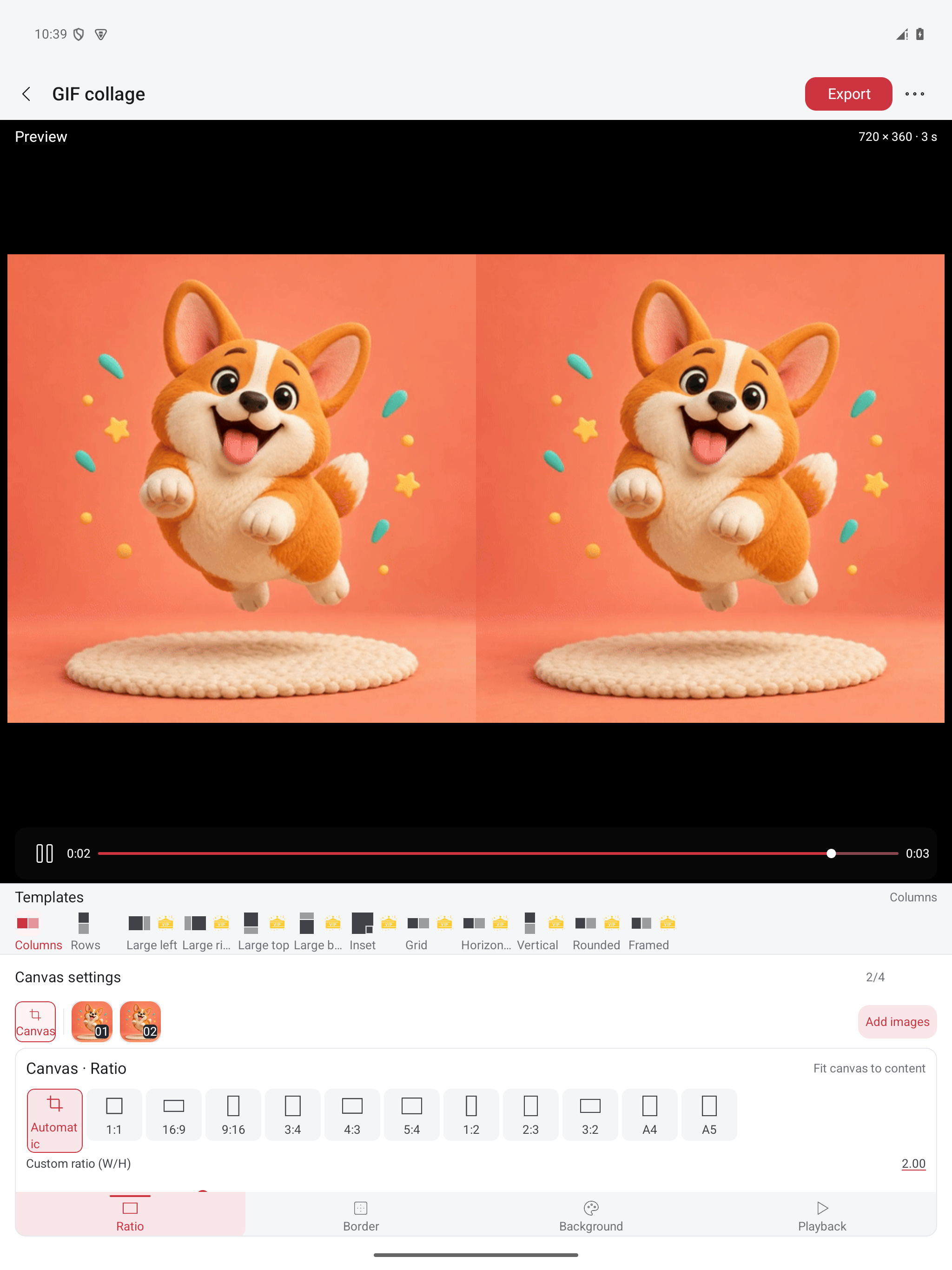
Follow the illustrated Columns example
Open GIF collage and add two GIFs. Select Columns under Templates; use Canvas settings to adjust Ratio, Border, Background, and Playback. Select Source 01 or Source 02 to adjust its framing, then play the preview. The real Android screen below shows two versions of the same demo animation together, with a preview labelled 720 × 360 and 3 s. Tap Export to create a GIF, then open the saved file and check both sides. The screenshot records the preview; it does not establish exported file size or quality.
Choose a side-by-side or vertically stacked collage
Use a two-column layout for action comparisons, try a stacked layout for content that fits vertically, or select a grid for more sources. Move or scale each source and check that faces, text, and important details fit their cells. A collage shows sources together rather than placing them one after another.
Combine a GIF with a still image
Add a JPG or PNG reference image alongside a GIF. The still image can explain the task while the animation demonstrates it in a separate area. Preview the full duration and check that the text stays readable and the animated area shows the important movement.
Tune framing and duration
Adjust source positions and scale, then choose canvas proportions, background, and duration. Preview the composition to check cropping and playback timing before exporting.
Worked workflow: compare two actions side by side
Add two GIFs and choose a two-column layout. Set the canvas proportions, then move or scale each source so both subjects fit their cells. Preview the moment when both actions should be visible. If durations differ, inspect what happens after the shorter source ends and adjust the clips or total duration. Export one GIF and check that both sides animate in the destination app.
Collage or sequence stitching?
A collage shows multiple sources at the same time. Sequence stitching plays animations one after another. Use loop count or GIF-to-video repeats when you want to repeat a single animation.
Export and feature limits
The collage is assembled locally and exported as a GIF. Complex layouts and large media require more processing; some templates or advanced settings require membership.